
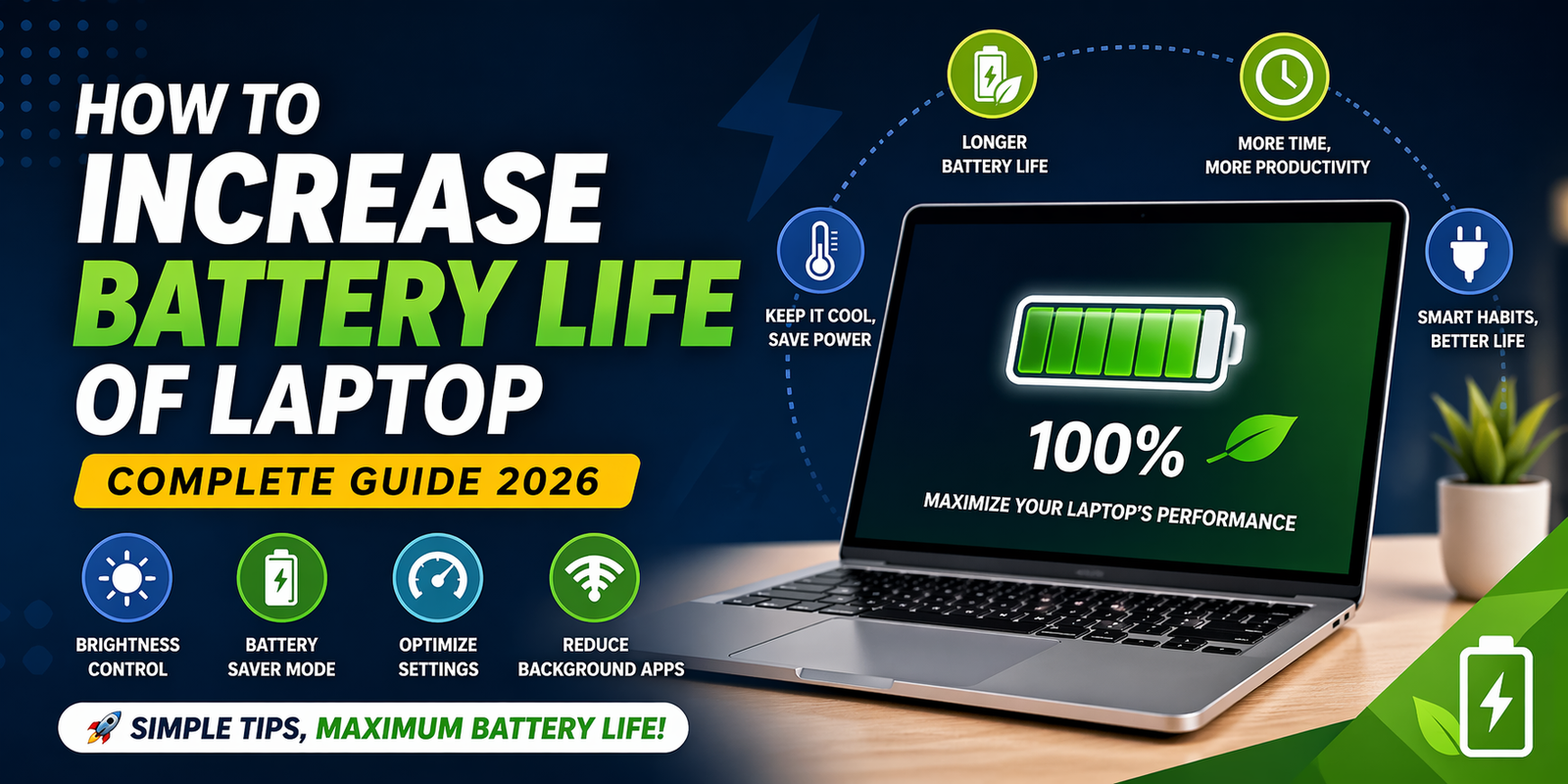
How to Increase Battery Life of Laptop (Complete Guide 2026)
1. Introduction
If you often find yourself searching for how to increase battery life of laptop, you’re definitely not alone. In today’s fast-paced digital world, laptops have become essential for students, professionals, gamers, and business owners. But one common issue everyone faces is fast battery drain.
Imagine working on an important project, attending an online meeting, or watching a movie—and suddenly your battery drops to 5%. Frustrating, right? That’s why learning how to increase battery life of laptop is more important than ever in 2026.
The good news is that you don’t need to be a tech expert to fix this problem. With a few simple adjustments and smart habits, you can significantly extend your laptop’s battery life.
2. Understanding Laptop Battery Basics
Before diving into solutions, it’s important to understand how laptop batteries work.
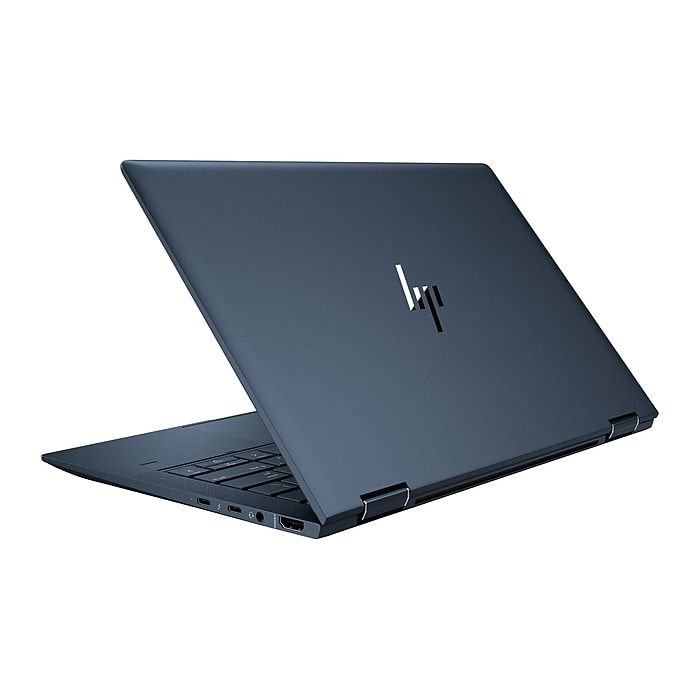
Most modern laptops use lithium-ion batteries, which are designed to be efficient but still degrade over time. Factors that affect battery life include:
- High temperature
- Constant charging
- Heavy software usage
- Poor power management
If you truly want to master how to increase battery life of laptop, you need to focus on reducing unnecessary load on your system. The less stress your battery experiences, the longer it will last.
3. Adjust Screen Brightness
One of the biggest battery-draining components in your laptop is the display.
Running your laptop at full brightness can drain the battery much faster than expected. Lowering brightness to around 50–70% can instantly improve battery performance.
👉 Pro Tip: Use adaptive brightness or manually adjust it depending on your surroundings.
4. Use Battery Saver Mode
One of the easiest and most effective ways to improve how to increase battery life of laptop is by using the built-in battery saver mode. Most modern laptops come with this feature, and it is designed specifically to reduce unnecessary power consumption.
When you enable battery saver mode, your laptop automatically limits background activities, reduces system performance slightly, and disables non-essential features like animations and syncing. This helps your device consume less power without affecting your main tasks like browsing, writing, or watching videos.
For Windows users, you can turn on Battery Saver Mode from the settings or taskbar. Mac users can enable Low Power Mode in system preferences. It’s a good habit to activate this feature when your battery drops below 30% or when you know you’ll be away from a charger for a long time.
If you truly want to master how to increase battery life of laptop, make battery saver mode your go-to solution during low battery situations.
5. Close Unnecessary Background Apps
Many applications run in the background without you even noticing.
Apps like:
- Web browsers with multiple tabs
- Auto-update services
- Messaging apps
These consume CPU power and drain your battery faster.
👉 Solution:
- Open Task Manager
- End unnecessary tasks

6. Turn Off Wi-Fi, Bluetooth When Not Needed
Wireless connections like Wi-Fi and Bluetooth are useful, but they also continuously consume battery power in the background. Even when you are not actively using them, your laptop keeps searching for networks or devices, which slowly drains your battery.
If you are working offline, watching a downloaded movie, or doing tasks that don’t require internet or external devices, it’s best to turn off Wi-Fi and Bluetooth. This small step can make a noticeable difference in overall battery performance.
Many users ignore this habit, but it plays an important role in improving how to increase battery life of laptop. Over time, these small savings add up and give you extra minutes or even hours of usage.
You can quickly toggle these options from the taskbar or settings menu, making it a simple yet powerful habit to adopt.
7. Optimize Power Settings
Optimizing power settings is one of the most effective ways to improve how to increase battery life of laptop. Instead of letting your system run on default settings, you should customize it based on your usage.
👉 What you should do:
- Switch to Power Saver or Balanced Mode instead of High Performance
- Set screen timeout to 5–10 minutes
- Enable sleep mode when inactive
- Reduce processor usage in advanced power settings
👉 Why it matters:
These settings ensure your laptop only uses power when necessary, helping you get maximum battery backup without sacrificing essential performance.
8. Reduce Startup Programs
Too many startup programs can slow down your laptop and drain battery from the beginning.
👉 Follow these steps:
- Open Task Manager
- Go to the Startup tab
- Disable apps you don’t need at startup
👉 Common apps to disable:
- Auto-updaters
- Chat apps
- Unused software
👉 Benefit:
Reducing startup programs helps your laptop boot faster and plays a big role in improving how to increase battery life of laptop.
9. Replace Battery When Needed
Sometimes, the issue is not your usage—it’s your battery health.
👉 Signs you need a replacement:
- Battery drains very quickly
- Laptop shuts down suddenly
- Charging takes longer than usual
- Battery percentage jumps randomly
👉 Important point:
Laptop batteries usually last 2–4 years. After that, performance drops significantly.
👉 Conclusion:
Replacing an old battery can instantly solve many issues related to how to increase battery life of laptop.
10. Common Mistakes to Avoid
Avoiding wrong habits is just as important as following the right tips.
👉 Don’t do these mistakes:
- ❌ Using laptop on bed or cushion (causes overheating)
- ❌ Keeping brightness at 100% all the time
- ❌ Running heavy apps unnecessarily
- ❌ Keeping laptop always plugged in
👉 Why avoid these?
These habits damage your battery health and reduce its lifespan over time.
👉 Pro Insight:
Fixing these mistakes can significantly improve how to increase battery life of laptop without any extra effort.
11. Conclusion
👉 Quick recap:
- Adjust brightness
- Use battery saver mode
- Optimize power settings
- Close unnecessary apps
- Avoid bad usage habits
👉 Final Thought:
You don’t need advanced skills—just consistency. Apply these tips daily, and your laptop battery will last longer and perform better.
To quickly improve how to increase battery life of laptop, lower your screen brightness, enable battery saver mode, close unnecessary background apps, and turn off Wi-Fi or Bluetooth when not in use. These small changes can instantly improve battery backup.
Fast battery drain usually happens due to high brightness, multiple background applications, outdated software, or poor battery health. Identifying these issues is important when learning how to increase battery life of laptop effectively.
Yes, modern laptops stop charging automatically once they reach 100%. However, keeping your laptop plugged in constantly may reduce long-term battery health. For better results in how to increase battery life of laptop, unplug occasionally and let the battery discharge.
On average, a laptop battery lasts between 2 to 4 years depending on usage and maintenance. Proper care and following tips on how to increase battery life of laptop can help extend its lifespan.